Automatically send review requests to your Jobber customers when a job is completed or an invoice is paid.
Connecting Jobber to LocalImpact takes just a couple of minutes. Once connected, LocalImpact can automatically add customers to your review request campaign based on activity in Jobber, so you don’t have to manually follow up after every job.
Connect your Jobber account
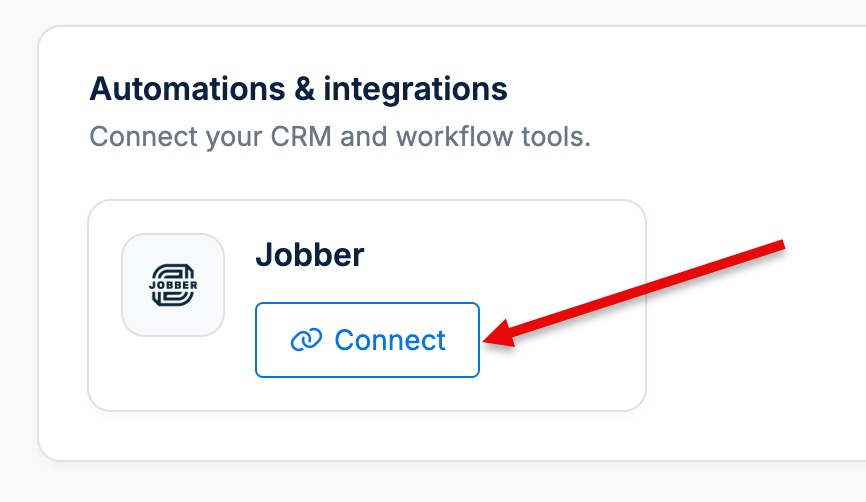
- In LocalImpact, go to Connections.
- Find Jobber and click Connect.
- You’ll be redirected to Jobber. Sign in if needed, then authorize LocalImpact to connect to your account.
- You’ll return to LocalImpact, where you can choose when customers should receive a review request.
Choose when to send review requests
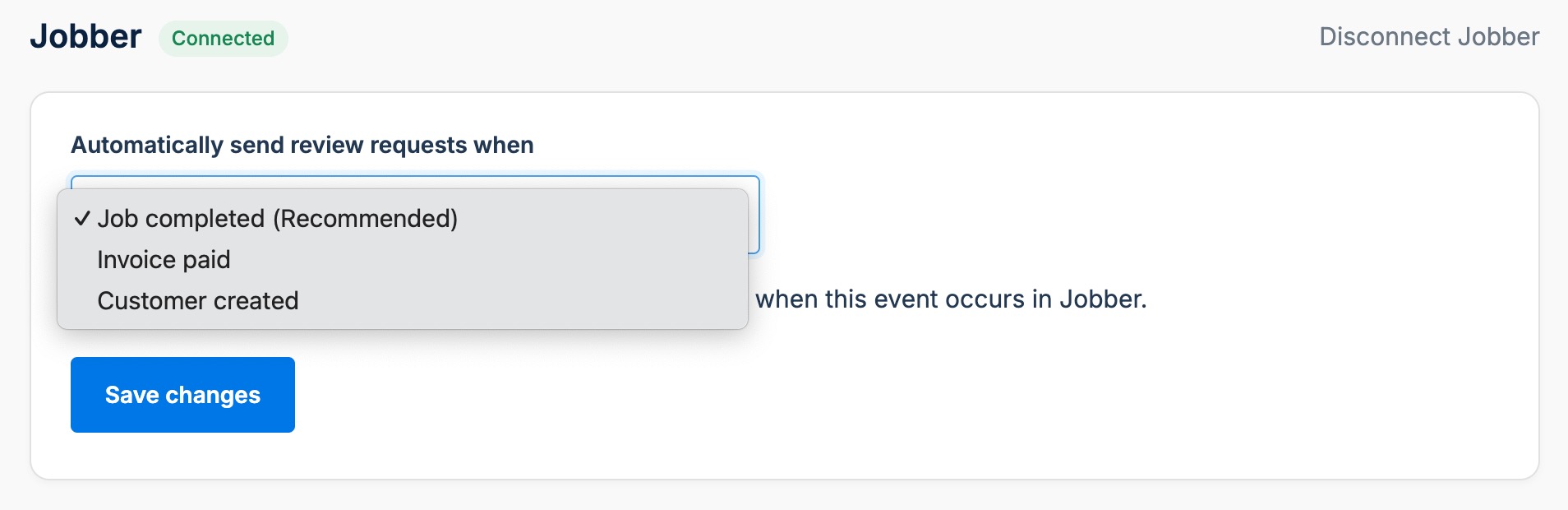
Choose which Jobber activity should automatically add a customer to your LocalImpact review request campaign:
- Job completed (Recommended) — sends a review request after a job is completed. This is the best option for most businesses.
- Invoice paid — sends a review request after the customer’s invoice has been paid.
- Customer created — sends a review request when a new customer is created in Jobber.
Choose the trigger that best matches your workflow and save your settings.
What happens after you connect?
That’s it. You can keep using Jobber as usual.
When the selected event happens in Jobber, LocalImpact automatically adds the customer to your review request campaign using their contact information from Jobber.
For example:
Job completed in Jobber → Customer added to LocalImpact → Review request sent → Customer leaves a review
There’s no need to manually copy customer information into LocalImpact or remember to send a request after each job.
Your existing LocalImpact campaign settings determine how and when review requests and follow-ups are sent.
Frequently asked questions
Which trigger should I choose?
For most businesses, we recommend Job completed. It asks for a review shortly after the work is finished, while the experience is still fresh.
Choose Invoice paid if you prefer to wait until the customer has paid, or Customer created if your workflow calls for starting the review request campaign as soon as a customer is added to Jobber.
Will review requests be sent to my existing Jobber customers?
No. Connecting Jobber won't automatically send review requests to your existing customers or for jobs that were completed before the connection was set up. Only new activity that occurs after you connect Jobber will trigger review requests.
If you'd like to request reviews from previous customers, you can export your customer list from Jobber and upload the CSV to LocalImpact as a one-time import.
Will existing customers receive another review request?
LocalImpact follows your existing campaign settings when a customer is added from Jobber. If the customer has already received a request recently, your minimum contact period determines when they can be contacted again.
What customer information does LocalImpact receive from Jobber?
LocalImpact uses the customer information needed to send the review request, such as their name and available contact information.
What happens if a customer doesn't have a mobile number?
If your review request campaign is configured to use email as well, LocalImpact can use the customer's available contact information based on your campaign settings.
Can I change the trigger later?
Yes. You can return to your Jobber connection settings in LocalImpact and change when review requests are triggered.
What happens if the Jobber connection expires?
If LocalImpact can no longer access your Jobber account, automated review requests from Jobber will be paused. You’ll see a notice in LocalImpact asking you to reconnect your account.
Once reconnected, the integration can resume.
Can I disconnect Jobber?
Yes. Go to your Jobber connection settings in LocalImpact and click Disconnect Jobber. New activity in Jobber will no longer trigger review requests.