Search Visibility helps you see where your business appears in Google Maps when customers search for services like yours.
Your Google Maps ranking can vary depending on where someone is searching from. For example, your plumbing business might appear near the top of the results in one neighborhood but much lower in another.
With Search Visibility, you can track your rankings across different locations, see which areas your business is most visible in, and monitor changes over time.
1. Open Search Visibility
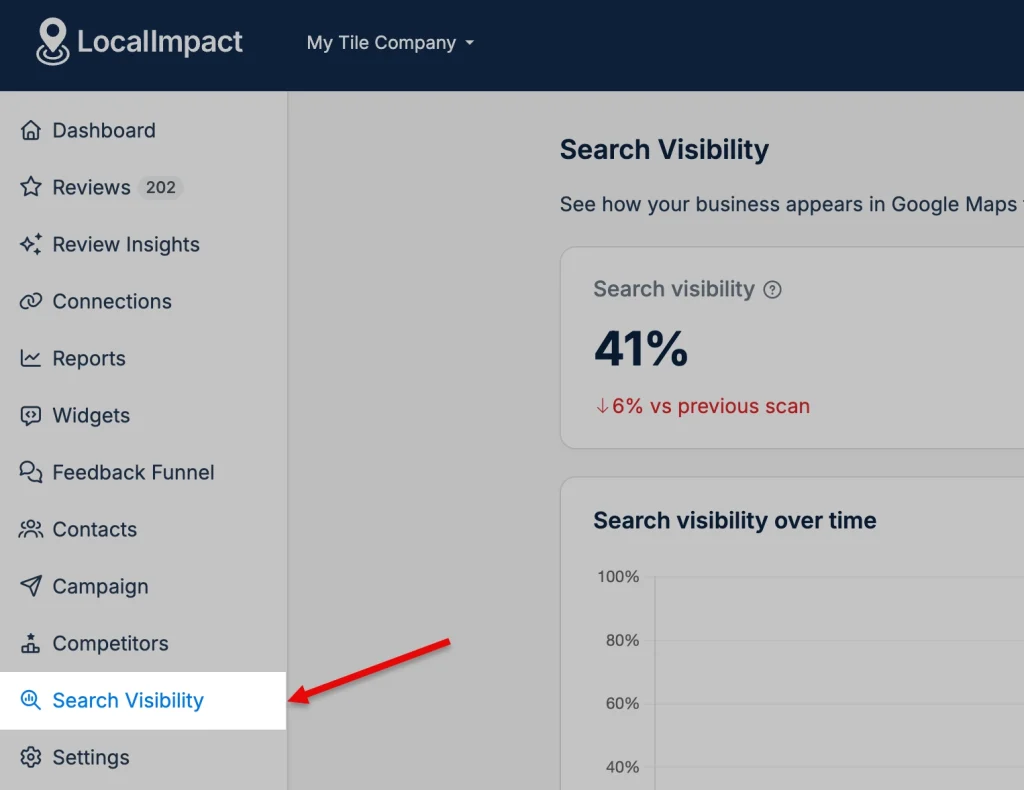
Log in to your LocalImpact dashboard, select the business you want to track, and click Search Visibility in the left sidebar.
To use this feature, your business must be connected to Google in LocalImpact. If it isn't connected yet, you'll see an option to connect it before continuing.
2. Choose the searches you want to track
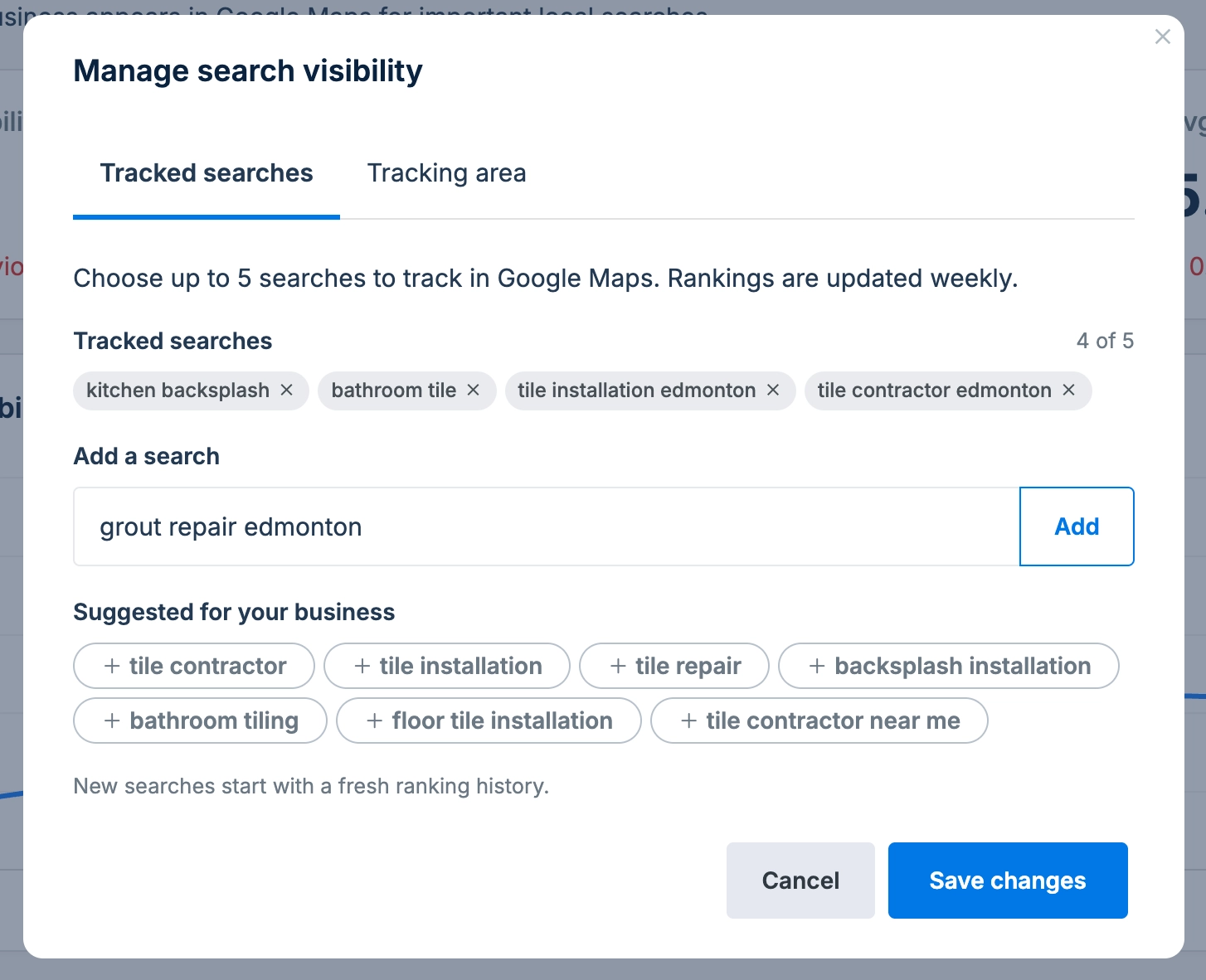
If you're using Search Visibility for the first time, follow the setup instructions to add your searches. If you've already set up tracking, click Manage searches to make changes.
You can track up to 5 searches per business. Choose words or phrases that potential customers would use when looking for your services.
For example, a plumbing company might track:
- plumber
- emergency plumber
- drain cleaning
- water heater repair
- plumber near me
You can enter your own searches or choose from the suggested searches provided by LocalImpact.
Click Add to include a search, or use the × next to an existing search to remove it.
3. Set your tracking area
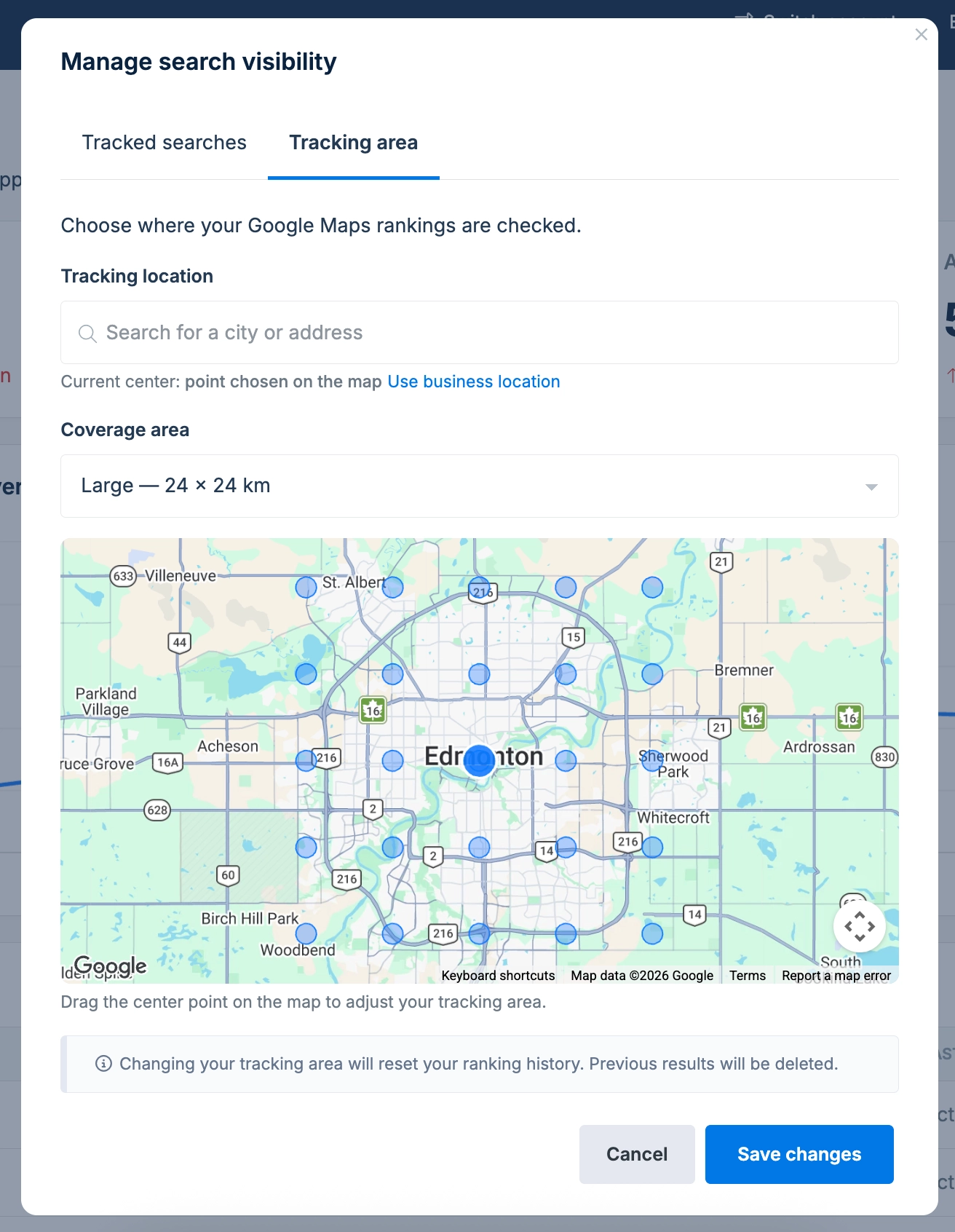
Search Visibility checks your Google Maps rankings from 25 different locations across a selected area. This helps you understand how your business appears to customers in different neighborhoods.
If your business has a publicly displayed address on Google, LocalImpact automatically centers the tracking area around your business.
If your business doesn't display an address on Google, you'll need to enter a city or address to choose where you'd like to track your rankings.
To adjust your tracking area:
- Open Manage searches and select the Tracking area tab.
- Enter a city or address, or move the center point on the map.
- Adjust the coverage to include the area you want to monitor.
- Click Save changes.
For example, if your company serves several neighborhoods around Edmonton, you can choose a larger tracking area to see how your rankings vary across the city.
When will my rankings appear?
Once you've saved your searches and tracking area, LocalImpact automatically starts checking your Google Maps rankings.
Your first results may take a little while to appear. After that, your rankings are updated automatically every week.
You don't need to start the scans manually.
4. Understand your ranking results
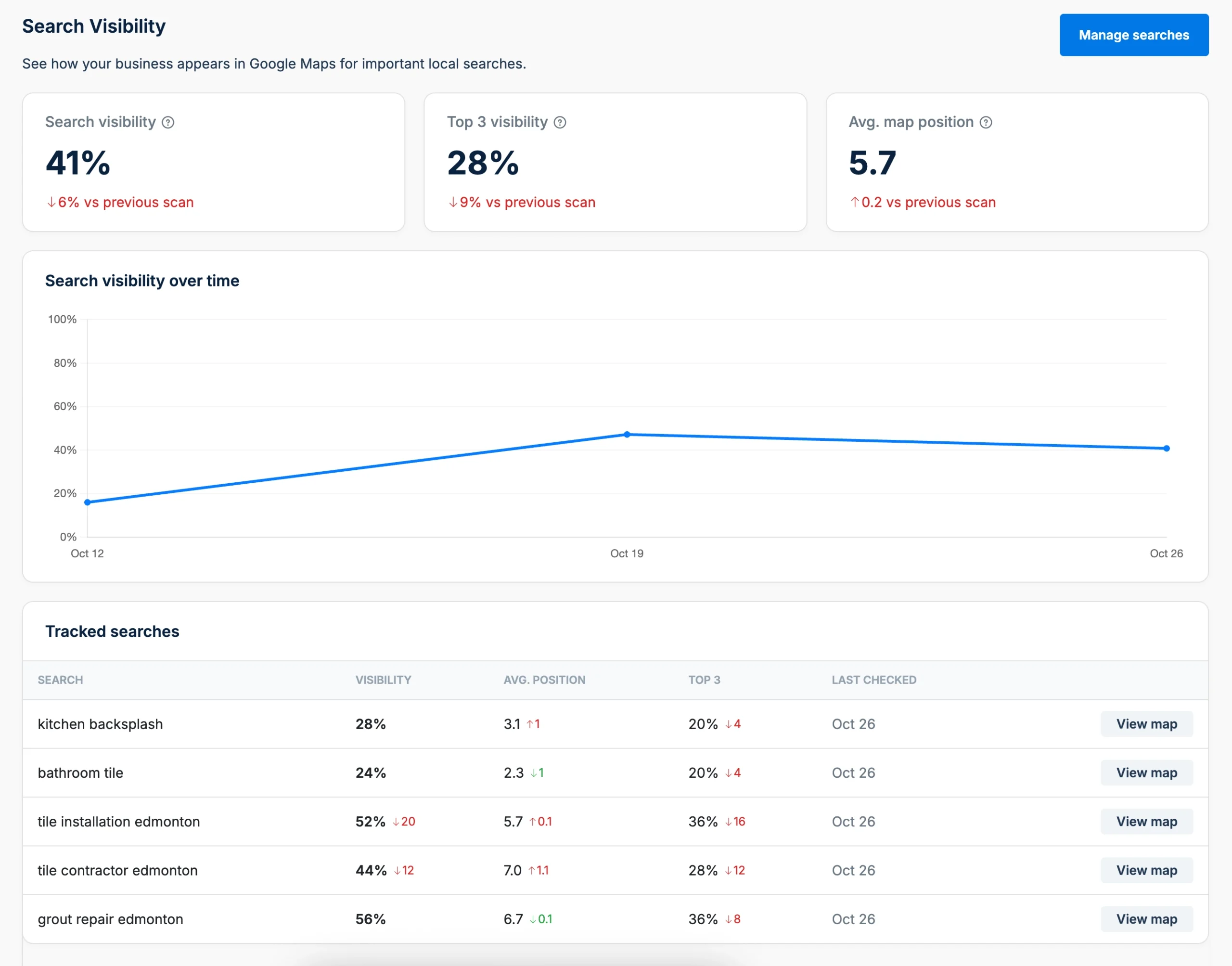
Once your first scan is complete, the Search Visibility dashboard displays an overview of your Google Maps rankings.
You'll see three main metrics:
Search visibility
The percentage of checked locations where your business appears in the top 10 Google Maps results.
For example, 60% visibility means your business ranked in the top 10 at 15 of the 25 locations checked for a search.
Top 3 visibility
The percentage of checked locations where your business appears in the top three Google Maps results.
These are especially important positions because they represent the top-ranked businesses for that search.
Average position
Your average ranking position across the locations where your business was found in the top 20 results.
Lower numbers are better. For example, an average position of 3 is better than an average position of 8.
Locations where your business wasn't found in the top 20 are not included in the average position calculation.
Below these metrics, you'll also find a chart showing how your search visibility changes over time and a table showing the results for each search you're tracking.
Green and red arrows show whether your results have improved or declined compared to the previous scan. Changes in visibility and Top 3 are measured in percentage points, while changes in average position are measured in ranking positions.
5. View your rankings on the map
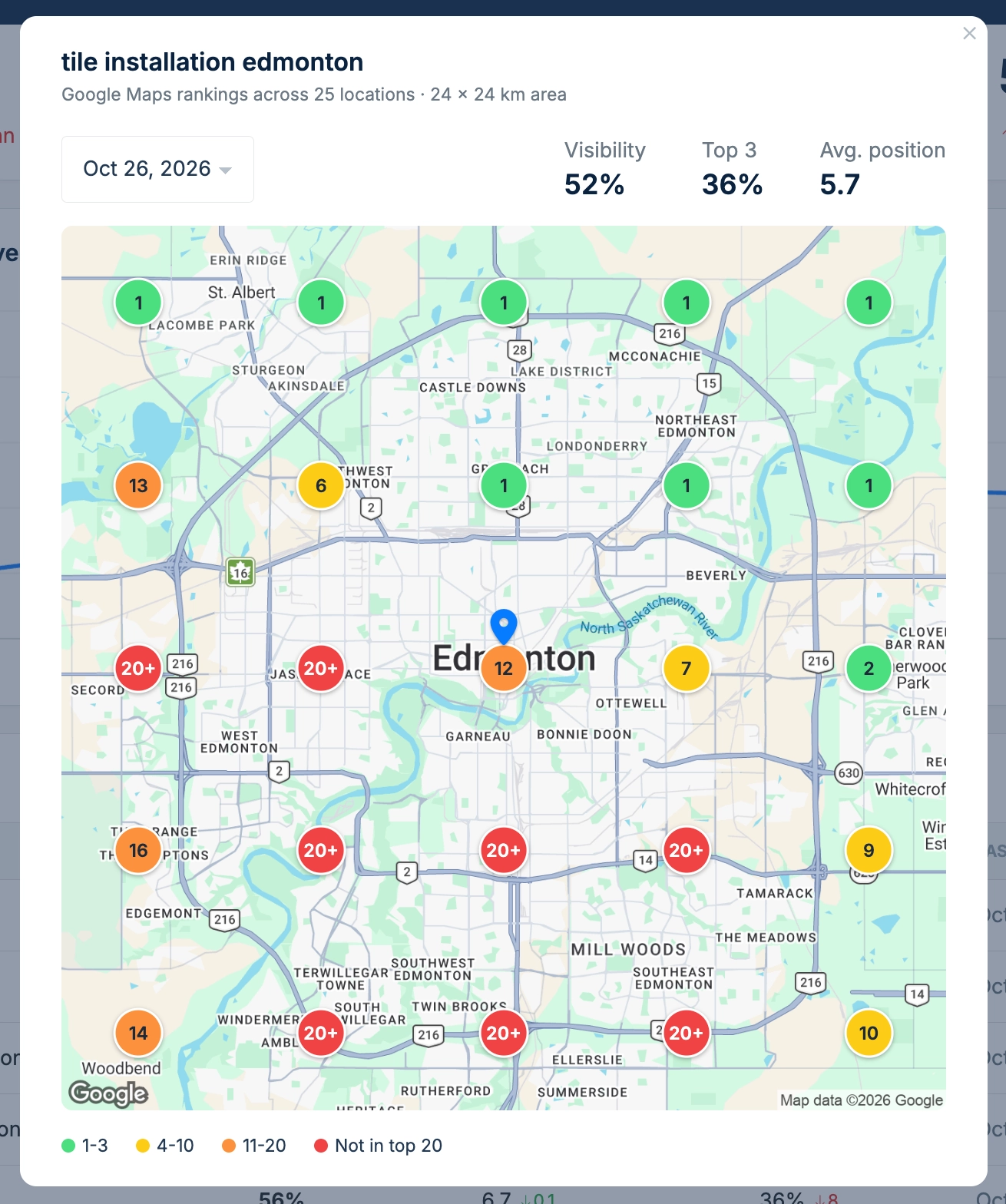
To see how your business ranks in different locations, click View map next to any tracked search.
You'll see a map with 25 markers representing different locations in your selected tracking area.
Each marker shows your business's Google Maps ranking at that location.
The colors make it easy to understand your results:
- 🟢 Green (1–3): Your business ranks in the top three.
- 🟡 Yellow (4–10): Your business ranks between positions 4 and 10.
- 🟠 Orange (11–20): Your business ranks between positions 11 and 20.
- 🔴 Red (Not in top 20): Your business wasn't found in the first 20 results.
For example, you might rank #2 near your business but outside the top 20 in neighborhoods farther away.
You can also use the date dropdown above the map to view results from previous scans and see how your rankings have changed.
6. Update your searches or tracking area
You can update your tracked searches or tracking area at any time.
Click Manage searches to add or remove searches, change the center of your tracking area, or adjust its coverage.
Important: Changing your tracking area or connected Google business will delete your previous ranking results and start a new ranking history. Your tracked searches will remain saved.
Frequently asked questions
How often are my Google Maps rankings updated?
Your rankings are checked automatically every week. You don't need to do anything to start a new scan.
Why does my ranking change depending on the location?
Google Maps results can vary based on where someone is searching from. A business might rank highly near its location but appear lower in results farther away.
Search Visibility helps you see these differences across your selected area.
What does "Not in top 20" mean?
It means your business wasn't found among the first 20 Google Maps results for that search at the selected location. It doesn't necessarily mean your business isn't listed on Google Maps.
Why is my average position different from my visibility percentage?
These metrics measure different things.
Search visibility measures how often your business appears in the top 10 results. Average position measures your average ranking among locations where your business was found in the top 20.
It's possible to have a good average position but low visibility if your business ranks well in only a few locations.
Does Search Visibility improve my Google Maps rankings?
Search Visibility doesn't directly change your Google Maps rankings. It helps you understand where your business appears in search results and track changes over time.
Can I track more than one business?
Yes. If you manage multiple businesses or locations in LocalImpact, you can set up Search Visibility separately for each one. Each business can track up to five searches.