Review campaigns help you automatically request reviews from your customers using email and SMS.
Each business in LocalImpact has one review campaign with a sequence of messages that are sent to contacts you add. LocalImpact includes a default set of messages to get you started, which you can customize to fit your business.
You can add, edit, disable, or delete messages and control when your review requests are sent.
Customize your campaign messages
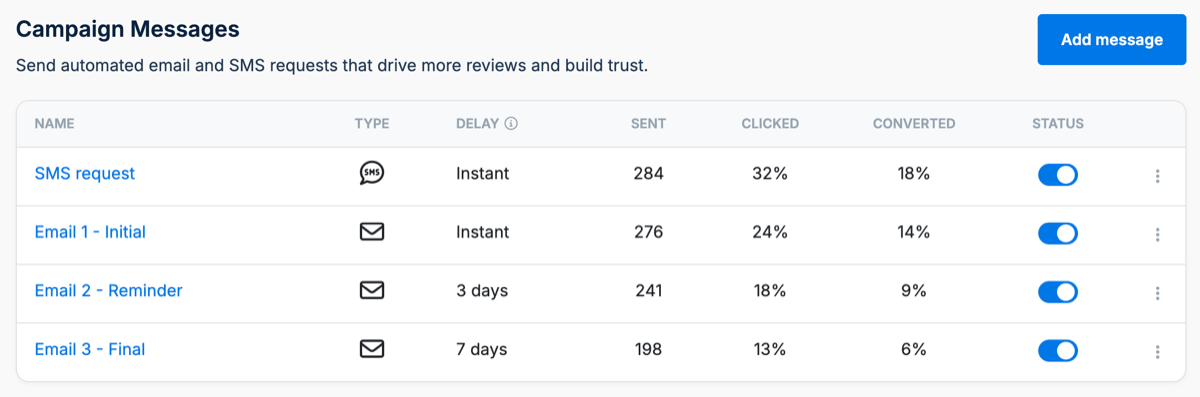
Go to Campaigns → Messages to view the messages in your campaign.
Each message can be sent by email or SMS. Click an existing message to customize it, or click Add message to add another email or SMS request to your sequence.
For email requests, you can customize the subject and message using the email editor. You can also personalize your message using customer and business information, such as the customer's first name and your business name.
For SMS requests, you can customize the text message, use personalization fields, and optionally include an image.
Messages can also be enabled or disabled at any time using the Status toggle.
Set delays between messages
The Delay determines how long LocalImpact waits before moving to the next message in your campaign.
Delays are based on the previous message in the sequence, rather than the date the contact was originally added.
For example, if an initial request is sent immediately and the next message has a three-day delay, the second request will be sent three days after the initial request.
If a contact doesn't have the required contact information for a message, LocalImpact automatically skips that message. For example, SMS messages are skipped for contacts without a phone number, while email messages are skipped for contacts without an email address. The campaign's original timing remains unchanged when a message is skipped.
Add contacts to your campaign
Once contacts are added, LocalImpact automatically moves them through your configured campaign sequence.
There are several ways to add contacts or initiate a review request, including:
- Adding a contact manually
- Uploading contacts in bulk using a CSV file
- Request Links
- Zapier
- The LocalImpact API
- Integrations such as Jobber
- Sending a review request to an existing contact
All of these methods use the same review campaign and message sequence.
For detailed instructions, see How to add contacts to a campaign.
If you're using Jobber, see Connecting Jobber to LocalImpact for instructions on automatically adding customers based on activity in Jobber.
What happens when a customer receives a request?
Email and SMS requests include a link that customers can use to provide feedback.
When a customer clicks the link, they're taken to your LocalImpact feedback funnel. From there, they can provide feedback and access the review sites you've configured for your business.
For more information about this process, see How the feedback funnel works.
Control when review requests are sent
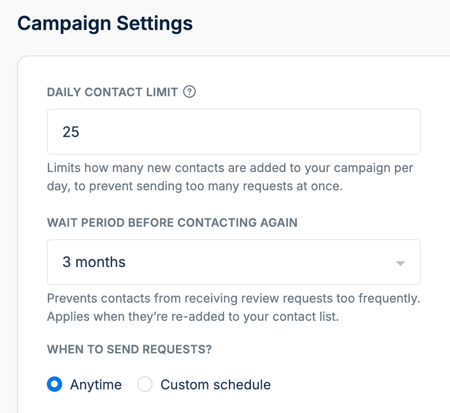
Go to Campaigns → Settings to control when and how frequently contacts receive review requests.
Daily contact limit
The Daily Contact Limit controls how many new contacts from a bulk import are added to your campaign each day.
For example, if you import a large CSV file, LocalImpact can gradually add those contacts to the campaign instead of sending requests to everyone at once. This helps maintain a more natural review-request cadence and avoids sudden spikes in activity.
The daily contact limit applies only to imported contacts.
Wait period before contacting again
The Wait Period Before Contacting Again prevents contacts from receiving review requests too frequently if they're added to your contact list again.
Choose the amount of time that should pass before an existing contact can receive another campaign.
Request sending schedule
By default, requests can be sent Anytime.
Select Custom schedule if you'd prefer to limit requests to particular hours or days of the week. Custom sending schedules use the timezone configured for your business.
Track campaign performance
The Messages page provides performance information for each message in your campaign, including:
- Sent — how many requests were sent.
- Clicked — the percentage of recipients who clicked the link in the request.
- Converted — the percentage of recipients who clicked through to one of your review sites after receiving the request.
A conversion indicates that the customer clicked through to a review site. It does not necessarily mean that they submitted a review.
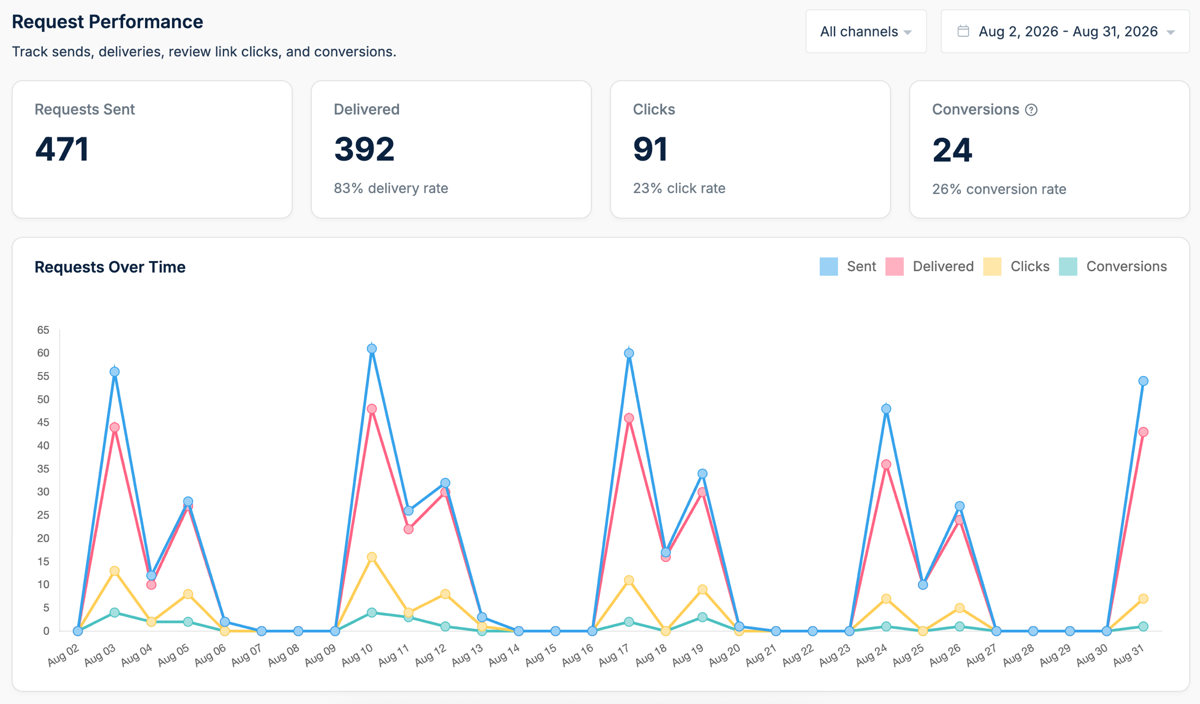
For a broader view of your campaign performance, go to Reports → Campaign Analytics.
There you can track requests sent, deliveries, clicks, and conversions over time and filter the results by channel and date range.
You can also go to Contacts and select an individual contact to view their activity, including requests sent and delivered, link clicks, and review-site clicks.
Frequently asked questions
Can I create multiple review campaigns?
Each business currently has one review campaign. You can customize that campaign by adding, editing, disabling, or deleting email and SMS messages.
What happens if I update my campaign while contacts are already scheduled?
When a contact is added to your campaign, all of their messages are scheduled using the campaign messages, delays, and sending settings in place at that time.
Changes you make afterward won't affect contacts who are already scheduled. They'll continue with the campaign configuration that was active when they were added.
If you want the updated campaign to apply to an already scheduled contact, you'll need to cancel their current campaign and add them to the campaign again.
What happens if a contact only has an email address or phone number?
LocalImpact automatically skips messages that can't be delivered. A contact without a phone number won't receive SMS messages, while a contact without an email address won't receive email messages. Skipped messages do not change the timing of the remaining campaign sequence.
What counts as a conversion?
A conversion is recorded when a contact clicks through to one of your review sites after receiving a review request. A conversion does not necessarily mean the customer submitted a review.
Can I send review requests to existing contacts?
Yes. From Contacts, select one or more contacts and use Bulk actions → Send request to send them through your review campaign again, subject to your campaign's contact rules.